
The original solution
The original iteration I came up with to import the data is my standard approach of walking through the cells and pulling in each data point. As I covered off in the previous post, I also had to pull together a few pieces of meta data to describe each data point and then write the row of data to the data provider workbook. Here is the code snippet that does this
With m_SummarySheet
    'Initialise the variables
    m_lngDRow = .UsedRange.Rows.Count 'get the last row of the destination worksheet for appending
    If m_lngDRow = 3 Then m_lngDRow = m_lngDRow - 1 'adjust it if the table is empty, which throws the count function out
    m_lngNoRecordCount = m_lngDRow 'set the variable used to check if no data was found

    'We will use the same row repeatedly for capturing the hour as it aligns with all data
    intHourRow = 12

    'This is the category row for the first set of data
    intCatRow = 10

    'now step through each row of data in the worksheet
    For m_lngSRow = 13 To 537 Step 1
        'Because the data is in blocks that are separated by inconsistent gaps, we set the start points based on simple logic
        If m_lngSRow = 44 Then
            m_lngSRow = 48 'for each data block we set the start row for the data
            intCatRow = 45 'and the category row
        End If

        If m_lngSRow = 79 Then
            m_lngSRow = 83
            intCatRow = 80
        End If

        If m_lngSRow = 114 Then
            m_lngSRow = 118
            intCatRow = 115
        End If

        If m_lngSRow = 149 Then
            m_lngSRow = 153
            intCatRow = 150
        End If

        If m_lngSRow = 184 Then
            m_lngSRow = 190
            intCatRow = 187
        End If

        If m_lngSRow = 221 Then
            m_lngSRow = 225
            intCatRow = 222
        End If

        If m_lngSRow = 256 Then
            m_lngSRow = 260
            intCatRow = 257
        End If

        If m_lngSRow = 291 Then
            m_lngSRow = 295
            intCatRow = 292
        End If

        If m_lngSRow = 326 Then
            m_lngSRow = 330
            intCatRow = 327
        End If

        If m_lngSRow = 361 Then
            m_lngSRow = 367
            intCatRow = 364
        End If

        If m_lngSRow = 398 Then
            m_lngSRow = 402
            intCatRow = 399
        End If

        If m_lngSRow = 433 Then
            m_lngSRow = 437
            intCatRow = 434
        End If

        If m_lngSRow = 468 Then
            m_lngSRow = 472
            intCatRow = 469
        End If

        If m_lngSRow = 503 Then
            m_lngSRow = 507
            intCatRow = 504
        End If

        For m_intSCol = 3 To 26 Step 1
            If m_SourceSheet.Cells(m_lngSRow, m_intSCol).Value <> "" Then
                .Cells(m_lngDRow, 1).Value = m_strCompany ' Contract holder
                .Cells(m_lngDRow, 2).Value = m_strArea 'Contract area
                .Cells(m_lngDRow, 3).Value = m_dteStartDate 'FromDate of the workbook period
                .Cells(m_lngDRow, 4).Value = m_SourceSheet.Cells(intCatRow, 2).Value 'Category
                .Cells(m_lngDRow, 5).Value = m_SourceSheet.Cells(m_lngSRow, 2).Value 'Date
                .Cells(m_lngDRow, 6).Value = "'" & m_SourceSheet.Cells(intHourRow, m_intSCol).Value 'Hour written as a string to keep the leading 0
                'check if data is missing
                If m_SourceSheet.Cells(m_lngSRow, m_intSCol).Value = "" Then g_boolIncomplete = True
                .Cells(m_lngDRow, 7).Value = m_SourceSheet.Cells(m_lngSRow, m_intSCol).Value 'Value

                'Step down a row in the destination worksheet
                m_lngDRow = m_lngDRow + 1
            End If
        Next m_intSCol
    Next m_lngSRow
End With
So lets break this down, The approach uses a nested loop model with one loop tracking the rows of data and the other stepping through the columns. Note that because I know the source worksheet is always going to have 537 lines of data, I use the For m_lngSRow = 13 To 537 Step 1 statement to scan through line by line. The m_lngSRow is the variable used to step through the rows of data in the source sheet, and as such, I need to make sure it only scans the rows with the relevant data. So when it reaches a break point between the end on one data set and the next data set, I use a bunch of simple IF statement to reset the variable to the start of the next data block and at the same time, I also ensure the intCatRow variable used to track the right Category for the data is also set correctly.
The second loop is taken care of with the For m_intSCol = 3 To 26 Step 1 statement, again I know there are always going to be 26 columns of data. So with these two loops I have a model that starts at the first row, scans through all the cells on that row that hold data, steps to the next row, and repeats the scan through columns. But what do I want to do when I get to each row and cell?
The first step is a test for a date in the first column with m_SourceSheet.Cells(m_lngSRow, m_intSCol).Value <> “”. The logic here is that each block of data is 31 rows tall because there is a row for each day of the month. But some months have less than 31 days, so this IF test will skip any further action for the row and step on to the next row.
If there is a value, then for each cell, or data point, I write a row in the destination sheet. This is achieved by using the destination cell equals something approach, seven columns of data and seven write statements:
.Cells(m_lngDRow, 1).Value = m_strCompany ' Contract holder
.Cells(m_lngDRow, 2).Value = m_strArea 'Contract area
.Cells(m_lngDRow, 3).Value = m_dteStartDate 'FromDate of the workbook period
.Cells(m_lngDRow, 4).Value = m_SourceSheet.Cells(intCatRow, 2).Value 'Category
.Cells(m_lngDRow, 5).Value = m_SourceSheet.Cells(m_lngSRow, 2).Value 'Date
.Cells(m_lngDRow, 6).Value = "'" & m_SourceSheet.Cells(intHourRow, m_intSCol).Value 'Hour written as a string to keep the leading 0
.Cells(m_lngDRow, 7).Value = m_SourceSheet.Cells(m_lngSRow, m_intSCol).Value 'Value

'Step down a row in the destination worksheet
m_lngDRow = m_lngDRow + 1
Whats so wrong with this approach
So what is the answer
Dim Arr() As Variant
Arr = Range("A1:B10")
Dim R As Long
Dim C As Long
For R = 1 To UBound(Arr, 1) ' First array dimension is rows.
    For C = 1 To UBound(Arr, 2) ' Second array dimension is columns.
        Debug.Print Arr(R, C)
    Next C
Next R
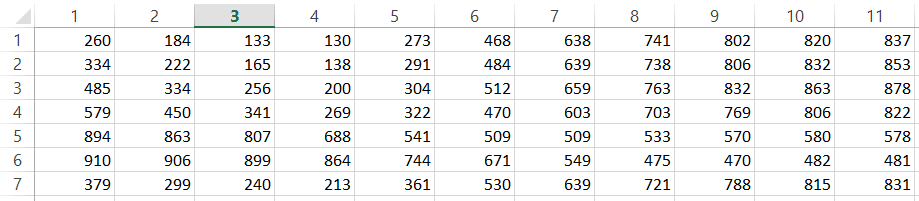
So when you load a range into an array with the wonderfully simple code Arr = Range(“A1:B10”), a two dimensional array of data is created. In the case of the workbooks I was importing, this means I now only needed to switch the focus to the source workbook 15 times per workbook for each block of data instead of 10,000 times for each cell of data. Clearly this was going to be a benefit.
Next we use the same nested loop model discussed earlier to walk through the data points in the same way, For R = 1 to UBound(Arr,1) is the equivalent of my previous For m_lngSRow = 13 To 537 Step 1 statement, whereas the For C = 1 To Ubound(Arr, 2) equates to the For m_intSCol = 3 To 26 Step 1 statement.
The solution in action
With m_SummarySheet
    m_lngDRow = .UsedRange.Rows.Count
    If m_lngDRow = 3 Then m_lngDRow = m_lngDRow - 1

    m_lngNoRecordCount = m_lngDRow
    intLoopCount = 1

    For intLoopCount = 1 To 15 Step 1
        Select Case intLoopCount
            Case 1
                intCatRow = 10
                'load a .Range to an array
                Arr = m_SourceSheet.Range("B13:Z43")
            Case 2
                intCatRow = 45
                'load a .Range to an array
                Arr = m_SourceSheet.Range("B48:Z78")
            Case 3
                intCatRow = 80
                'load a .Range to an array
                Arr = m_SourceSheet.Range("B83:Z113")
            Case 4
                intCatRow = 115
                'load a .Range to an array
                Arr = m_SourceSheet.Range("B118:Z148")
            Case 5
                intCatRow = 150
                'load a .Range to an array
                Arr = m_SourceSheet.Range("B153:Z183")
            Case 6
                intCatRow = 187
                'load a .Range to an array
                Arr = m_SourceSheet.Range("B190:Z220")
            Case 7
                intCatRow = 222
                'load a .Range to an array
                Arr = m_SourceSheet.Range("B225:Z255")
            Case 8
                intCatRow = 257
                'load a .Range to an array
                Arr = m_SourceSheet.Range("B260:Z290")
            Case 9
                intCatRow = 292
                'load a .Range to an array
                Arr = m_SourceSheet.Range("B295:Z325")
            Case 10
                m_lngSRow = 330
                intCatRow = 327
                'load a .Range to an array
                Arr = m_SourceSheet.Range("B330:Z360")
            Case 11
                m_lngSRow = 367
                intCatRow = 364
                'load a .Range to an array
                Arr = m_SourceSheet.Range("B367:Z397")
            Case 12
                intCatRow = 399
                'load a .Range to an array
                Arr = m_SourceSheet.Range("B402:Z432")
            Case 13
                intCatRow = 434
                'load a .Range to an array
                Arr = m_SourceSheet.Range("B437:Z467")
            Case 14
                intCatRow = 469
                'load a .Range to an array
                Arr = m_SourceSheet.Range("B472:Z502")
            Case 15
                intCatRow = 504
                'load a .Range to an array
                Arr = m_SourceSheet.Range("B507:Z537")
        End Select

        strCat = m_SourceSheet.Cells(intCatRow, 2).Value
        intLoopCount = intLoopCount + 1 'incrment the loop count

        For R = 1 To UBound(Arr, 1) ' First array dimension is rows.
            C = 1
            If Arr(R, C) <> "" Then
                intHour = 0 'reset the hour to 0
                dteDate = Arr(R, C) 'Date
                For C = 2 To UBound(Arr, 2) ' Second array dimension is columns.
                    .Cells(m_lngDRow, 1).Value = m_strCompany ' Service contract holder
                    .Cells(m_lngDRow, 2).Value = m_strArea 'Service contract area
                    .Cells(m_lngDRow, 3).Value = m_dteStartDate 'FromDate of the workbook period
                    .Cells(m_lngDRow, 4).Value = strCat 'Category
                    .Cells(m_lngDRow, 5).Value = dteDate 'date
                    .Cells(m_lngDRow, 6).Value = intHour 'Hour written as a string to keep the leading 0
                    'check if data is missing
                    If Arr(R, C) = "" Then g_boolIncomplete = True
                    .Cells(m_lngDRow, 7).Value = Arr(R, C)  'Value
                    m_lngDRow = m_lngDRow + 1
                    intHour = intHour + 1
                Next C
            End If
        Next R
        'clear the array
        Erase Arr
    Next intLoopCount
End With
The code starts out the same with establishing the variables for writing to the destination sheet, it takes a different turn for how I approached the different data blocks. This time around I opted for a three level nested loop. the first level used a variable called intLoopCount that counted the number of times I had run the import process, which is once per data block. I know there are 15 groups of data in a workbook, so I count from 1 to 15. I then used a Select Case statement to use the intLoopCount to know which bundle of data I was importing. Similar to the previous model, I identify the category location but instead of setting the start to the range, I load the range into the array and that is the last time I look at the import workbook until I have written all the values to the destination sheet.
Immediately after the Select Case, I grab the Category value into a variable, strCat = m_SourceSheet.Cells(intCatRow, 2).Value as this information applies to all values in the array, then I increment the loop count with intLoopCount = intLoopCount + 1, and point the first array dimension at the first “row” of the array R = 1.
I then start stepping through the first dimension of the array with the code directly from the Pearson site, For R = 1 To UBound(Arr, 1) , the first array dimension is rows. The second, “columns”, dimension is then initialised with C = 1.
The If Arr(R, C) <> “” statement performs the same check as discussed earlier to detect if there is a date in the first “column” of the array and as such detect if we had come to the end of the month.
This time around I didn’t extract the hour from the import sheet, instead opting to generate the value by counting from 0 to 23 using the intHour variable. In the previous code I converted the value into a string to retain the leading zero for single digit values, this time I simply formatted the destination column with a custom “00” format that forces the leading zero.
As the date is applicable to all values in the row of data, I then capture the date value into a variable using dteDate = Arr(R, C) before I start stepping through the column dimension with:
For C = 2 To UBound(Arr, 2) ' Second array dimension is columns.
    .Cells(m_lngDRow, 1).Value = m_strCompany ' Service contract holder
    .Cells(m_lngDRow, 2).Value = m_strArea 'Service contract area
    .Cells(m_lngDRow, 3).Value = m_dteStartDate 'FromDate of the workbook period
    .Cells(m_lngDRow, 4).Value = strCat 'Category
    .Cells(m_lngDRow, 5).Value = dteDate 'date
    .Cells(m_lngDRow, 6).Value = intHour 'Hour written as a string to keep the leading 0
    'check if data is missing
    If Arr(R, C) = "" Then g_boolIncomplete = True
    .Cells(m_lngDRow, 7).Value = Arr(R, C)  'Value

    m_lngDRow = m_lngDRow + 1
    intHour = intHour + 1
Next C
Take note of the similarity to the previous code, yet the significant difference in the absence to any reference to the import workbook. The result is an import time cut from more than 2 hours down to just over 15 minutes. It is now feasible for the users to import the data during their normal working day without impacting their general productivity too significantly.
For those of you who have been following my blog on the advanced excel contract management solution, don’t give up, I promise the next edition is on the way. The next instalment will cover how to separate the data from the data entry and uses a similar technique that discussed earlier in this blog.
As always, if you have any questions, leave a comment below, visit the PME4U forums or contact us directly through the Contact PME4U. Thanks for reading and best of luck with your coding.